Create Lookup presentations
Under the Settings button  in the Lookup feature you find the following window where you on the function menu can add, delete, or copy Lookup presentations.
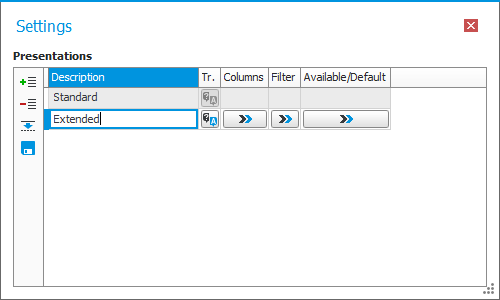
Translations
You first enter a Description for a Lookup presentation. By using the button Translations  you can translate the text to the different active languages registered in the system.
Columns
In a Lookup presentation you can configure which Columns in the register should be shown.
For each column you add, you can enter the Width i pixels. The minimum width allowed (which also is the default width) is 75 pixels. When the Width field is empty, the column width will become 75 pixels. The maximum width allowed for a column is 1000 pixels.
For each column you can configure if it should be Possible to search, deciding how the column is used during Find As You Type. The available options are: Not possible to search (only included in the Lookup presentation as information), Starts with (the text you are typing), or Contains (the text you are typing). The default option when a column is added is Not possible to search.
Filters
You can add a Filter making only a selection of records show and be possible to search in the register. There are different terms to filter by in different registers. The filter works in the same way as the selection rows in list procedures.
Available/Default
If you have created a Lookup presentation it will automatically be Available to you in the concerned register anywhere where it occurs in the entire system. It is also possible to make the Lookup presentation available to other users, user rights groups, and roles. When a Lookup presentation is marked to be available to someone, then it is also possible to have it as Default.
|
Feedback:
|
||

|
  
|