Change year
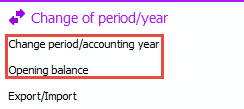
To "change year" (change to a new accounting year) in MONITOR G5 is something your company needs to do when you begin a new fiscal year, in cases where the company uses the Accounting module. To change year you use the procedures Change period/accounting year and Opening balance.
Please note! Before you start to change year, make sure you have a current and working backup copy of the MONITOR database!
 Change to new accounting year
Changing of accounting year should as a rule be performed before you register transactions in the accounts payable, accounts receivable, and in the accounting of the new year. Follow this instruction to change accounting year:
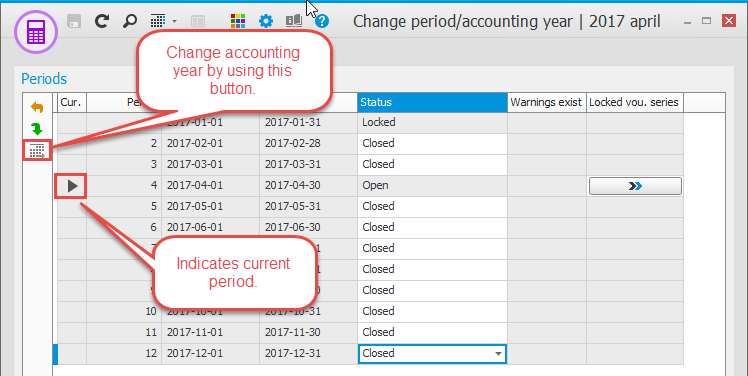
- Open the procedure called Change period/accounting year. Make sure that December is the current accounting period (Period 12). This is displayed with a black arrow in the Cur. column on that row.
- Click the button Change year
 and then OK.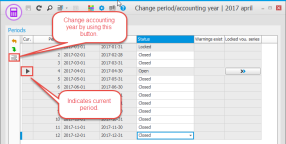
-
You then enter the new active accounting year. By default the next calendar year is suggested. Click OK to make the system generate the new accounting year.
This generating of a new accounting year might take a few minutes and it might look as it the program is not responding. Do not close the program in this mode, but wait until the system has finished generating the accounting year!
 After changing year
When you have changed year, you should check that:
- The period distribution for the new year is correct. Reopen the Change period/accounting year procedure and make sure periods 1–3 are open for accounting.
- The Income statement has been reset and the Balance sheet for the new year only contains preliminary OB. You should check this in the Print accounting report procedure.
- The Income statement and Balance sheet are correct in the annual financial statements.
Integration with Accounting
For those of you who use integration between the accounts payable/accounts receivable and the accounting, it is important to remember that journals belonging to the new accounting year can not be printed and reset until you have changed to a new accounting year. This also applies when you use integration to the Accounting (without printing a journal).
Please note! A voucher number series linked to a journal with integration set to Direct per invoice, will keep going and does not restart the number series. For these voucher number series the field Next voucher number is deactivated. The other voucher number series automatically start over from 1 after you have changed to a new accounting year.
Working with two accounting years in parallel
When you have created the new year, you can always go back to the previous year to add transactions and complete the financial statement. In the Accounting year section in the backstage of the desktop you can change accounting year for all procedures.

If you shift between accounting years this will only apply for the logged-in user in question. Thus, it is possible for different users to work in different accounting years in parallel.
You can also temporarily shift accounting year in certain procedures by clicking the button Change accounting year  on the toolbar of the procedure.
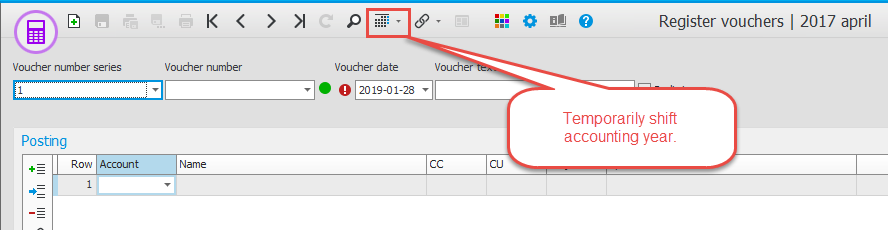
If you shift between accounting years in a procedure, it will only apply in that specific procedure and at that time. If you close the procedure and open it again you will automatically be in the current accounting year.
When the year-end closing is completed
When the year-end closing is completed, you load the definite OB to the new year. Follow these instructions:
- Make sure that you are working in the current accounting year.
- Open the Opening balance.
- To load all opening balances, you click on the button Load OB from previous year's CB
 .
.
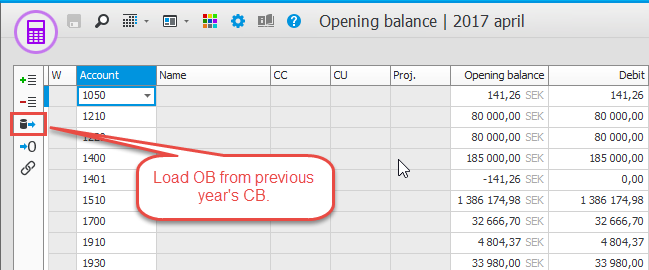
You can do this as many times as you need.
Please note! Remember to close the final period in the previous year (AFS) when all reconciliations have been performed!
|
Feedback:
|
||

|
  
|