Lookup in large registers
In large registers MONITOR G5 such as for example the part register and different order registers, there is a powerful search function to use to find and load records in the register. It is called Lookup. Using this Lookup feature you can browse for records, search for records, and view your most recently loaded records from the register in question. Here you can also create Lookup presentations. In a Lookup presentation you decide which columns you want to include in the presentation and which of those should be possible to search. You can also add filters with selections of different type of records that should be possible to search.
You open the Lookup feature using the  button or F4 in fields belonging to large registers, for example a part field for the part register.
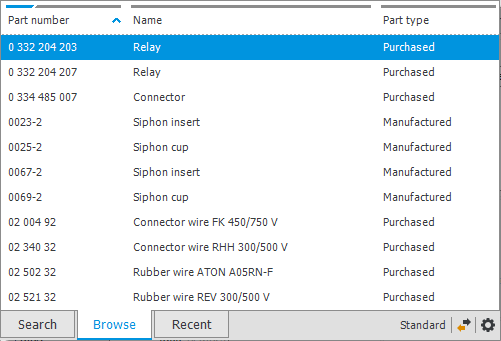
 The Browse tab
Under the Browse tab you can look for records in the entire register in a list you can scroll down and up using the arrow keys, or using the scroll wheel.
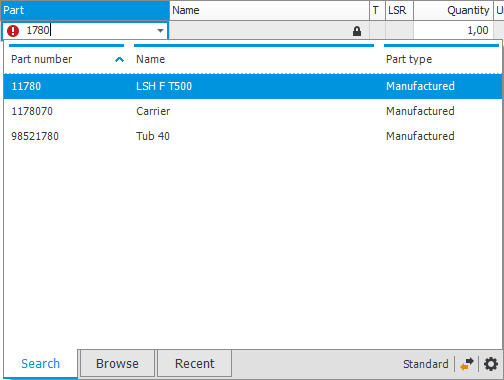
 The Search tab
The Search tab automatically becomes activated if you type characters in the register's field. Here you can do a quick search for records. When you type/enter characters it means all records containing these characters will be automatically matched. In the example below "1780" has been entered in the part field. The Lookup will then only show the records containing these characters. Please note! The search takes place in all columns in the window which have been set to possible to search. Read more about this in the topic Create Lookup presentations.
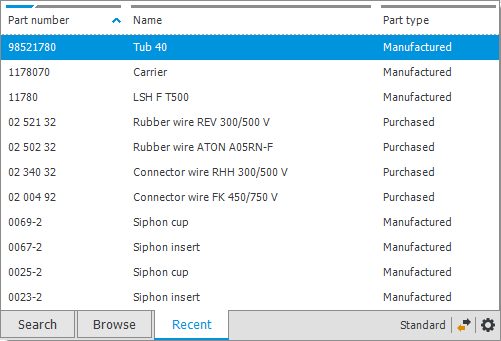
 The Recent tab
Under the Recent tab you see the 12 most recently loaded records from the register in question, with the most recent record displayed at the top. Here you can in a quick way load records you often use.
 Lookup presentations
If there are Lookup presentations (that you have access to) in the register in question, then you can use the button  at the bottom right of the window to choose which Lookup presentation you wish to use. A Lookup presentation called "Standard" is included in the system.

In a Lookup presentation you can configure which columns in the register should be shown and be possible to search in. It can also contain a filter. Using a filter you can only see and search in a selection of records. A Lookup presentation can also be default in the register or only available to certain users. To create presentations Lookup presentations you start by clicking the Settings button  to the right at the bottom of the window. Read more about this in the topic Create Lookup presentations.
|
Feedback:
|
||

|
  
|